Parameter Editor
Edit playable ad parameters with the visual editor, understand hierarchical overrides, and perform bulk updates
Overview
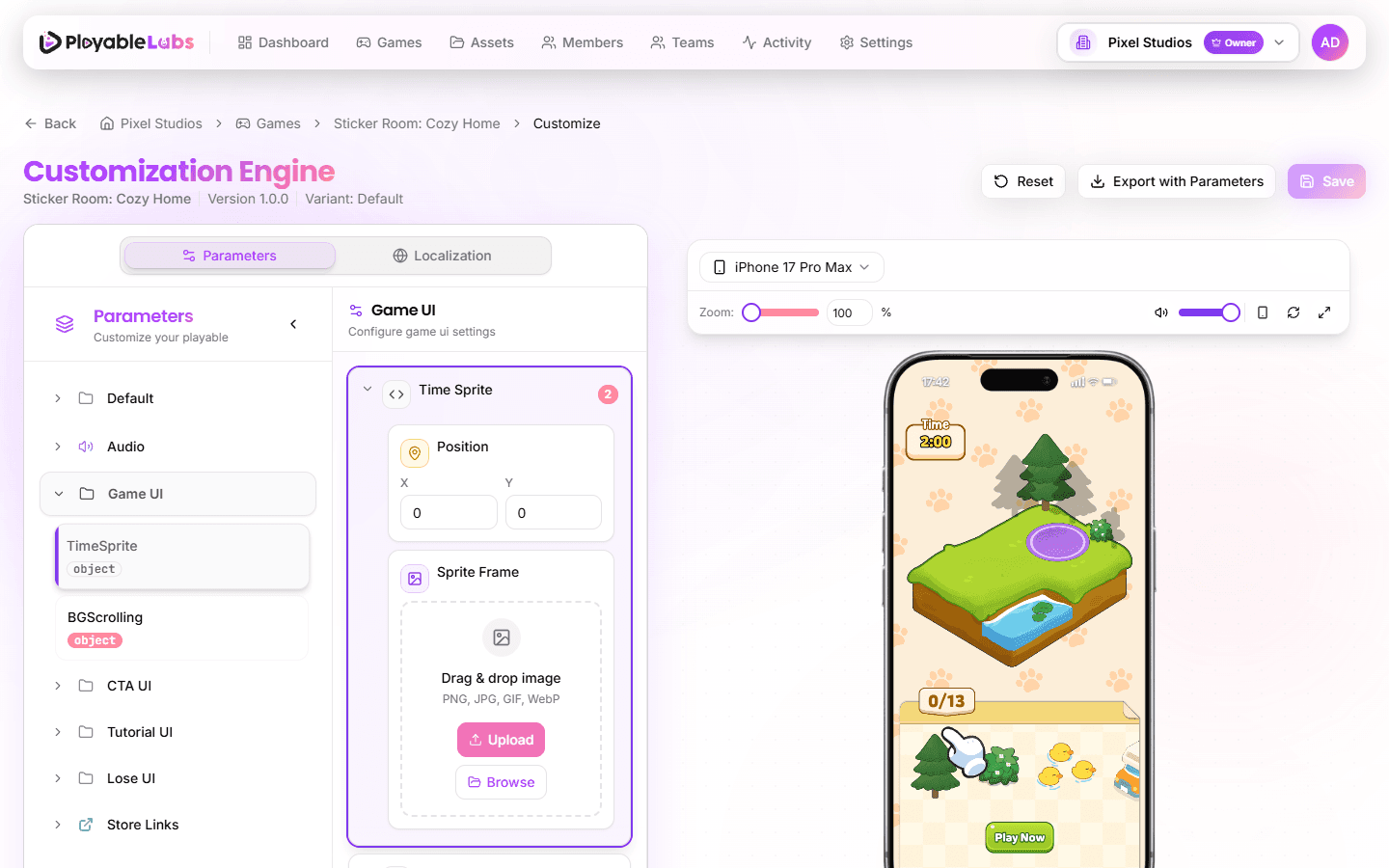
The Parameter Editor is the primary interface for customizing your playable ads. It provides a visual editor that dynamically generates input controls based on each parameter's type, with support for hierarchical overrides and bulk editing.
Navigate to a variant's detail page and open the Customize tab to access the editor.
Parameter Types
The editor supports the following parameter types:
| Type | Control | Example |
|---|---|---|
text | Text input | Game title, button labels |
number | Number input with validation | Score multiplier, countdown timer |
boolean | Toggle switch | Enable sound, show tutorial |
utc | Date and time picker (stored as Unix epoch seconds) | Scheduled start time, promotion end date |
range | Slider with min/max/step | Volume level, animation speed |
select | Dropdown menu | Theme selection, difficulty level |
color | Color picker with presets | Background color, text color |
image | Image upload with preview | Logo, background image |
audio | Audio upload with playback | Sound effects, background music |
video | Video upload with preview | Tutorial videos, animations |
asset_3d | 3D model upload (GLB/GLTF) | Character models, 3D assets |
coordinates | X/Y coordinate inputs | Element positioning |
table | Dynamic row-based editor | Data tables, item lists |
formatted_text | Rich text with styling controls | Styled labels with font/color/alignment |
font_family | Font selector with preview | Text font selection |
object | Nested parameter group | Grouped settings |
Each parameter includes a key, type, value, and optional description that explains its purpose.
json is not one of these types. ParameterType in packages/shared/src/types/common.types.ts declares no JSON member, so a schema cannot ask for one. What happens is the reverse: a parameter whose declared type the editor does not recognize falls back to a generic JSON editor, and an unrecognized formatted_* type renders read-only instead, because its field set is fixed and a hand-edited record would only be partly applied. Either way the parameter is shown, never dropped.
Editing Parameters
Basic Editing
- Open a variant and navigate to the Customize tab
- Browse parameters by category using the sidebar navigation
- Click any parameter value to edit it
- The change is reflected in the live preview immediately
- Click Save to persist your changes
Visual Indicators
- Modified -- A parameter you have changed this session shows a rose Modified pill on its editor card (plus a rose bar along the card's top edge). The sidebar row and the palette row mark the same state with a small rose dot, and the sidebar folder shows how many of its parameters are modified.
- Required indicator -- Mandatory parameters display a red asterisk (*)
- Reset to original -- Each modified card has a Reset to original button that restores the inherited value for that one parameter. On wide screens (xl and up) it appears when you hover or focus the card; on narrower screens it is always visible. This is a different action from the header's Reset, described below.
Reset (all unsaved changes)
The Reset button in the panel header discards every unsaved edit on the page -- parameter changes and unsaved translations -- and returns to the last saved state. It is disabled while there is nothing to discard, and it always asks first: the dialog is titled Discard all unsaved changes?, counts what would be lost, and offers Keep editing or Discard and reset. There is no undo. On phones the button lives in the More actions menu together with Export and Share.
So: Reset to original (on a card) reverts one parameter to its inherited value; Reset (in the header) throws away the whole unsaved session.
Unsaved Changes Guard
If you try to leave the page with unsaved changes -- through the breadcrumb, the Back button, the Ad Networks link, or by switching to another variant or version -- the browser asks You have unsaved changes. Leave this page and discard them? Cancelling keeps you on the edited selection (the URL is put back). Closing the tab or reloading still goes through the browser's own "leave site?" prompt. The app's left navigation is not guarded.
Category Navigation
Parameters are organized into categories (e.g., "UI", "Gameplay", "Audio"). Use the Category Sidebar on the left to jump between groups without scrolling.
Subcategories are sections inside the editor as well: clicking UI › Buttons in the sidebar scrolls the editor to a labelled Buttons section header inside the UI category rather than emptying the list. The sidebar and the editor list parameters in the same order, with advanced parameters last in both. Clicking the row of the parameter you are already on scrolls back to its card.
Parameter Names
A parameter is named by its schema label; a legacy schema that only set name is named by that; otherwise the raw key is shown. The same rule applies in the sidebar, the editor and the palette, so one parameter never has two names. The palette's second line also shows the raw key when it differs from the label, for people who search by key.
General
A top-level parameter with no category in the schema is not dropped. It lands in a General category, which is listed after every authored category so a schema's own organization always comes first.
Frequently Customized
When a game has at least two variants, the sidebar leads with a Frequently customized category. It lists the parameters most often overridden across all variants of that game, most-overridden first, up to twelve rows. Each row shows its count (for example ×4, with a tooltip reading Customized in 4 variants), and behaves like any other row: selecting one edits the real parameter in its original category. Keys that no longer exist in the current schema are left out, the internal store-link keys are never counted, and the category only appears on the Parameters tab.
Advanced Parameters
A parameter authored with advanced: true is hidden behind a collapsed Advanced (N) row at the bottom of the parameter list, so the primary controls are what you see first. The row is full-width and styled like a sidebar category row; expand it to reach the rest. The disclosure's open state is remembered per browser, so a schema you keep expanded stays expanded on your next visit. Sidebar rows for these parameters carry a small uppercase adv tag (read as "Advanced parameter" by screen readers).
Reaching an advanced parameter from the sidebar or the palette opens the disclosure automatically, before the editor scrolls to it.
Show Modified Only
The Show modified only toggle sits in the sidebar header next to the type filter. With it on, the sidebar lists only the parameters you have changed during this session, and the editor narrows to the same set. A parameter counts as modified when its own value changed or when any nested value inside it changed, so editing one field of a group keeps that group visible.
When a category has nothing modified yet, the editor says so rather than showing an empty list.
Compact Layout
On tablet-sized screens and up, the panel header has a Compact layout toggle. In compact mode every number, text, select, boolean and range card becomes a single line -- label on the left, control on the right -- so roughly twice as many parameters fit on one screen. Media, colour, table and formatted-text cards keep their stacked layout. The choice is remembered per browser; on a window shorter than 900px at load, compact is the default.
Localization-Aware Editing
Parameters marked as localizable show a globe icon. These parameters can have different values per locale. See Localization for details.
Parameter Palette (Cmd/Ctrl+P)
Press Cmd+P (macOS) or Ctrl+P (Windows and Linux) to open a jump-to-parameter palette, or use the search button in the parameter panel header, whose hint and shortcut chip name the modifier for the machine you are on (the chip is shown on wide screens only). On phones there is a search button next to the category picker instead. This is the fastest way to reach a parameter when you know roughly what it is called but not which category holds it. The palette is available on the Parameters tab.
The shortcut is ignored while you are typing in a field or composing text with an input method, so it never interrupts an edit; the same is true of Cmd/Ctrl+F, which focuses the sidebar search. Elsewhere on the Parameters tab, Cmd/Ctrl+P opens the palette instead of the browser's Print dialog.
Selecting a row jumps to that parameter and moves keyboard focus into its card, so you can start editing without reaching for the mouse. If Show modified only is on and the parameter you picked is not modified, the filter is switched off so the card can be shown.
What It Searches
Each row can be matched on:
- the parameter label
- the parameter key
- its category and subcategory
- any aliases the schema author attached to it, which are usually the words people actually use for that parameter
Results are ranked by how directly they match. An exact label or alias match comes first, then a label or alias prefix, then a label or alias substring, and finally a match on the key or category name. Up to twenty rows are shown, and ties keep the sidebar's order; when more than twenty match, the list ends with Showing 20 of N matches so you know to keep typing.
Every row shows the label, a type chip, the category breadcrumb, the raw key when it differs from the label, and a rose dot when that parameter has been modified this session.
Recently Edited
Before you type anything, the palette lists the last five parameters you edited in this session, most recent first, and leaves them out of the unranked list below so nothing is shown twice. The group disappears once you start searching, so ranked results are never pushed below the fold. It is cleared when you use the header Reset or switch to another variant or version.
Ask AI
Whenever the box has text in it, the palette offers a final Ask AI: "<your query>" row. Selecting it closes the palette, opens the AI chat, and places your query in the composer as a draft you can edit or send. If you were already writing something, your query is added on a new line below it rather than replacing it.
Cmd+K / Ctrl+K still opens the AI chat directly. The two shortcuts do not overlap.
On Smaller Screens
- Phones (below the
smbreakpoint): Save stays in the header; Reset, Export, Share and Ad Networks collapse into a More actions menu. A layers button opens the category drawer (titled Categories), a Category picker jumps between top-level categories, and the search button opens the palette. The AI chat opens as a full-screen takeover. - Between
smandxl: the sidebar collapses to an icon rail and overlays the editor when expanded, and the AI chat opens as a bottom sheet about 45% of the window tall, so the editor stays usable behind it. - From
xlup: sidebar, editor and preview sit side by side; the preview column is narrower atxland widens again on very wide displays.
Hierarchical Overrides
PlayableLabs uses a four-level hierarchy for parameter values:
Variant > Version > Game > OrganizationWhen you view a variant's parameters, each value shows its source -- where the value is inherited from:
- variant -- Set directly on this variant (highest priority)
- version -- Inherited from the parent version
- game -- Inherited from the game level
- organization -- Default from the organization
How Overrides Work
- Organization defaults provide baseline values for all games
- Game-level values override organization defaults
- Version-level values override game values
- Variant-level values override everything (highest priority)
If you edit a parameter on a variant, it creates a variant-level override. To revert to the inherited value, click the Reset to original button on the parameter's card.
Example: A game defines
backgroundColoras#FFFFFF. Version "Holiday" overrides it to#FF0000. Variant "Google Ads" inherits the red from the version, but Variant "Meta" overrides it to#00FF00.
Working with Media Parameters
Image, Audio, and Video
Media parameters provide multiple upload options:
- Upload -- Click to select a file or drag and drop directly
- Browse -- Select from your existing asset library
- Paste -- Paste images directly from clipboard (images only)
- AI Generation -- Generate audio using AI sound generation (audio only)
All media files are stored in your organization's R2 storage and converted to optimized CDN URLs automatically.
3D Model Parameters
For asset_3d parameters:
- Supports GLB and GLTF formats (max 50MB)
- Live 3D preview with interactive viewer
- Upload or browse from asset library
- Drag and drop support
Table Parameters
The table type provides a dynamic row-based editor:
- Add/remove rows with validation
- Drag to reorder rows (if enabled)
- Supports both primitive values and complex object rows
- Each row can contain any parameter type (text, number, color, etc.)
- Keyboard navigation for accessibility
Formatted Text Parameters
The formatted_text type offers rich styling controls:
- Text content with expandable editor
- Font family selection (9 web-safe fonts)
- Font size and color
- Text alignment (left, center, right, justify)
- Stroke width and color
- Live preview of formatting
Tips
- Use the live preview (right panel) to verify changes visually before saving
- Hover over a parameter's key name to see its description and data type
- The Reset to original button on a card reverts that one parameter to the inherited value; the header Reset discards every unsaved change on the page
- Turn on Compact layout when you are scanning a long category rather than editing one card at a time
- Export your configuration before making large changes, so you can restore if needed
Next Steps
- Preview System -- Real-time preview with device simulation
- Localization -- Multi-language parameter values