Team Management
Create teams, manage their members and games, control who can open each game with the access matrix, and manage organization roles in PlayableLabs
Overview
Teams group people so you can decide who can open which games. The Teams page in the sidebar is one hub with three tabs:
- Teams -- every team as a card, with search, filter and sort
- Access matrix -- a grid of teams against games, where you grant or revoke access in bulk
- Activity -- recent changes to teams, members and game access
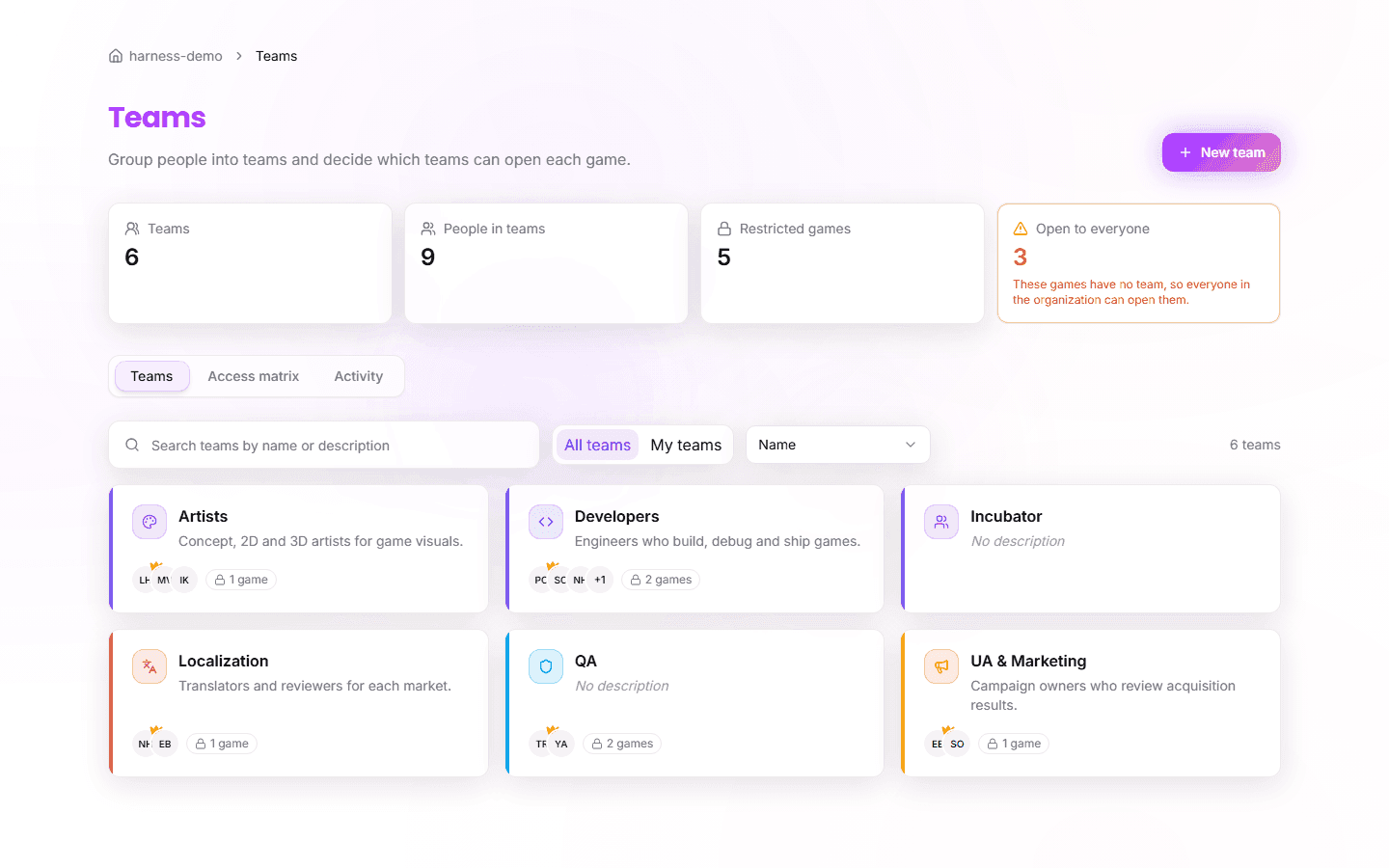
Teams are separate from organization roles. An organization role (Owner, Admin, Manager, Member, Viewer) applies to the whole organization. A team role (Lead or Member) applies only inside one team. See Roles and Permissions for the full matrix.
How game access works
Whether someone can open a game depends on the teams assigned to it:
- A game with no team is open to the whole organization. Every organization member can open it.
- Once any team is assigned, the game is restricted. Only members of the assigned teams can open it. Owners, Admins and Managers can always open every game.
Assigning the first team to a game restricts it. Removing a game's last team opens it to the whole organization again. The hub warns you before that happens.
The stat strip
Four tiles sit above the tabs:
| Tile | Meaning |
|---|---|
| Teams | Number of teams in the organization |
| People in teams | Distinct people who belong to at least one team |
| Restricted games | Games assigned to at least one team |
| Open to everyone | Games with no team |
The Open to everyone tile turns amber when some games are restricted and others are still open, as a reminder that those games have no team yet.
Game counts include only the games you can see.
Teams tab
Each team card shows its icon and color, name, description, member and game counts, and the first few members. A badge marks teams you belong to: You lead if you are the team Lead, Member otherwise.
- Search -- type in the search box to match team names and descriptions.
- Filter -- All teams (default) or My teams.
- Sort by -- Name (default), Most members, Most games or Recently updated.
The filter and sort choice stay in the page address, so you can share a link to a filtered view. Click a card to open the team drawer.
If the organization has no teams yet, the tab shows a short empty state. People who cannot create teams see a note asking an Owner, Admin or Manager to create one.
Creating a team
Owners, Admins and Managers see a New team button at the top right.
- Click New team.
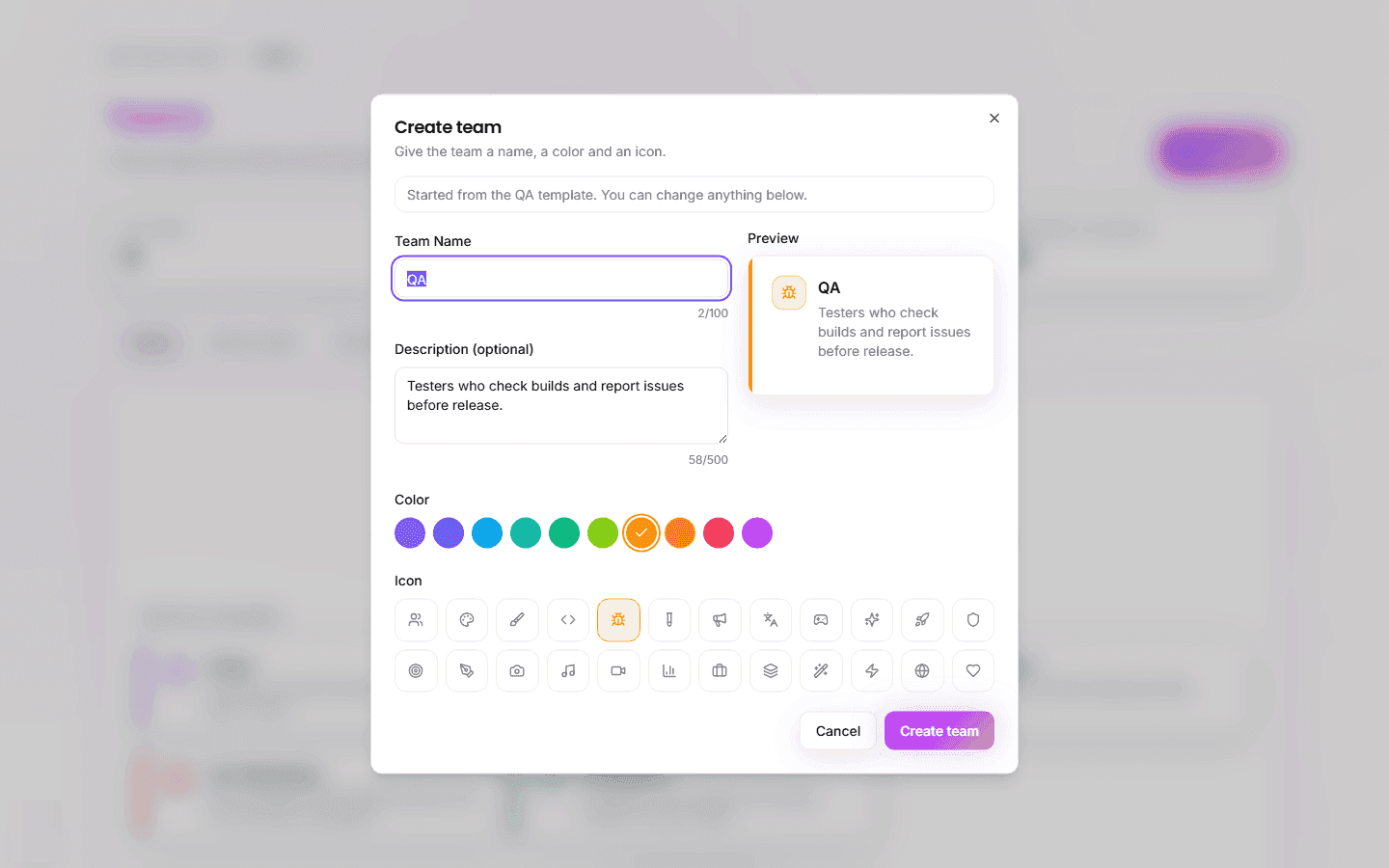
- Enter a Team Name (up to 100 characters) and an optional description (up to 500 characters).
- Pick a Color from the palette and an Icon. The Preview shows how the team will look.
- Click Create team.
Team names must be unique in the organization. A duplicate name shows an error in the dialog and keeps it open.
Starting from a template
When the organization has no teams, the empty state offers five templates under Start from a template: Artists, QA, Developers, UA & Marketing and Localization. A template pre-fills the name, description, color and icon. The dialog notes which template you started from, and you can change anything before you create the team. Start from scratch opens a blank dialog.
Once at least one team exists, New team always opens a blank dialog.
The team drawer
Click a team card to open its drawer. It has three panels: Members, Games and Activity. The header shows the team's icon, name, description and creation date. Owners, Admins and Managers also see Edit team and Delete team there.
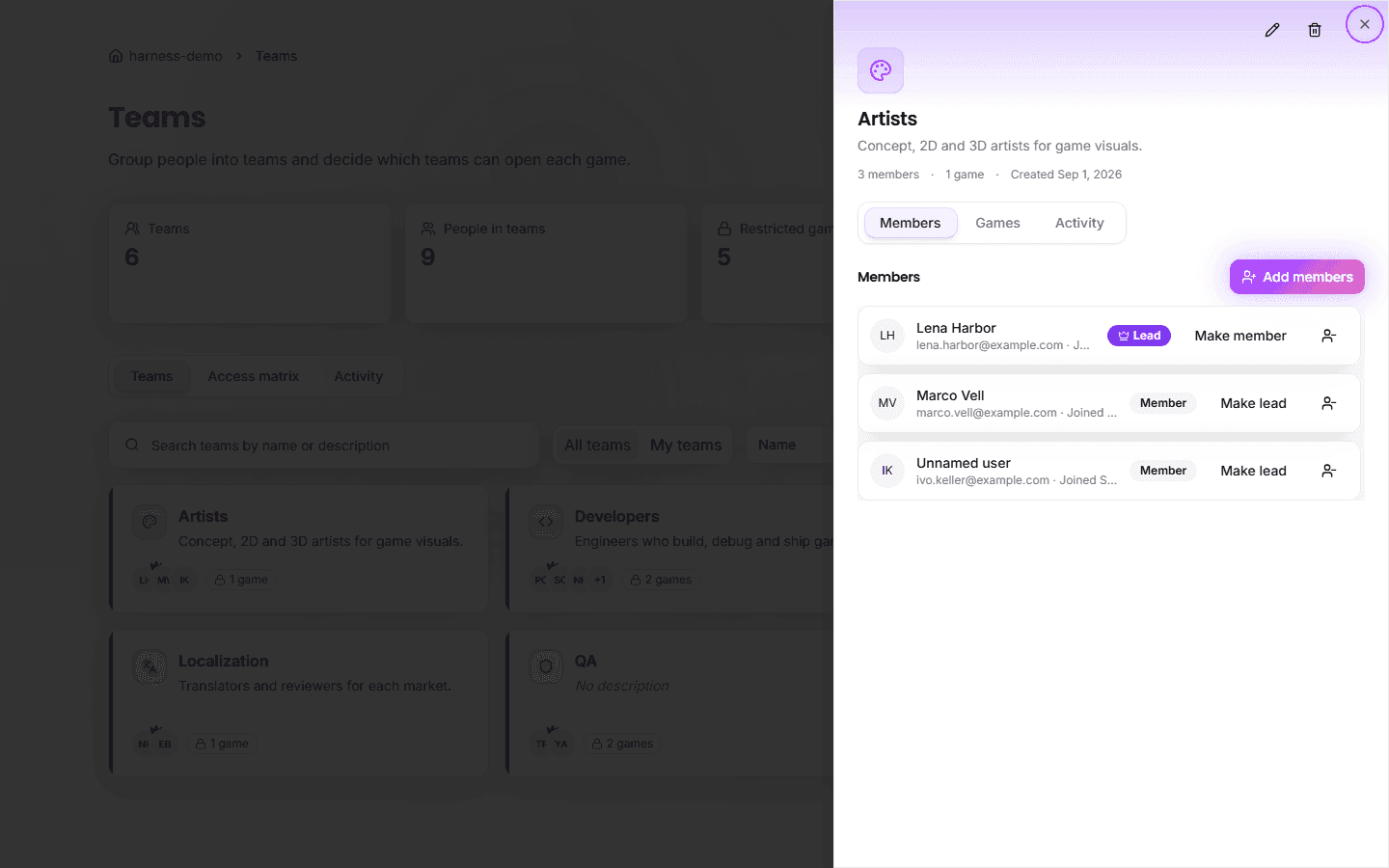
Press Escape or use Close to return to the hub. The hub stays on the tab you were using.
Deep links
Each team has its own address, so you can link straight to it:
/<your-organization>/teams/<team-id>opens the drawer on the Members panel.- Add
?panel=gamesor?panel=activityto open another panel. - Add
?tab=matrixor?tab=activityto choose which hub tab sits behind the drawer.
Members panel
The list shows each person's name, email, join date and team role.
- Add members opens a search box for people in your organization. Search by name or email, select as many people as you need (up to 100 at a time), and click Add N members. A line above the button says how many restricted games the new members will be able to open. Only active organization members can be added.
- Make lead and Make member switch a person between the two team roles. Only Owners, Admins and Managers can change roles.
- The remove button next to a person takes them out of the team. On your own row it reads Leave team instead.
Removing someone asks for confirmation, because they lose access to any game that only this team can open.
Team roles
| Team role | What it means |
|---|---|
| Lead | Looks after the team's roster: adds members, removes Members, and can leave the team |
| Member | Belongs to the team and can open its games. Cannot change the roster |
A Lead cannot remove another Lead or change anyone's role. An Owner, Admin or Manager can. A Lead cannot edit the team, delete it, or change which games it can open.
A team Member cannot leave the team on their own. Ask a Lead, or an Owner, Admin or Manager, to remove you.
Games panel
Lists the games assigned to the team. Each row shows whether the game is Only this team or Shared with N other teams.
- Add games opens a search box. Select games and confirm.
- The remove button on a row takes the game away from the team. If this team is the game's only team, a dialog warns that the game becomes visible to the whole organization. Choose Remove anyway to continue.
Only Owners, Admins and Managers can change a team's games. Everyone else sees the list read-only.
Activity panel
Shows changes for this team: creation, edits, members added or removed, role changes, and games granted or removed. Use Load more for older entries.
The Access matrix
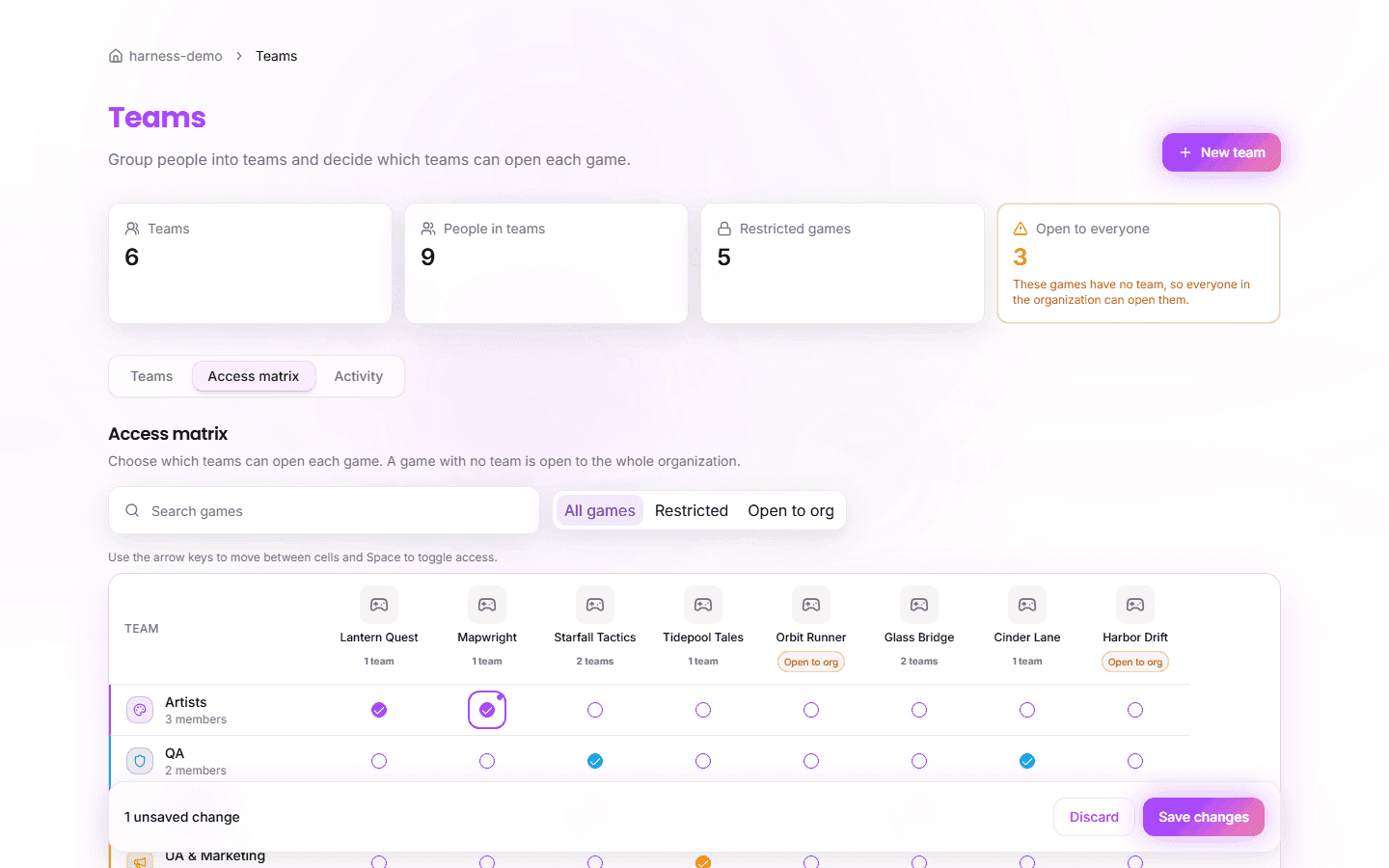
The Access matrix tab shows teams as rows and games as columns. A checked cell means that team can open that game. Use it when you want to change access for several games or teams at once.
Reading the matrix
- Each game header shows how many teams the game has. A game with no team carries an Open to org badge instead.
- A game whose teams were all deleted earlier shows Admins only. Only Owners, Admins and Managers can open it.
- Use the search box to find games by name, and the Show games filter to switch between All games, Restricted and Open to org. The filter uses saved access, not your unsaved changes, so a game does not vanish while you edit it.
Staging changes
Changes are staged, not applied immediately.
- Click a cell, or move to it with the keyboard and press Space, to grant or revoke access.
- A cell you changed gets a ring and a small dot, and screen readers announce it as Unsaved change.
- A bar appears at the bottom with the count, for example 3 unsaved changes.
- Click Save changes to apply every staged change in one step, or Discard to throw them all away.
If a save fails, nothing is applied and your staged changes stay so you can retry.
The last-team warning
If your staged changes would take the last team away from a game, the bar shows a warning, for example 1 game becomes open to the whole organization, followed by the game names. Review the list before you save. Re-adding a team to a game clears the warning for it.
Keyboard use
The grid is one tab stop. Press Tab to enter it, then:
| Key | Action |
|---|---|
| Arrow keys | Move between cells |
| Home / End | First / last cell in the row |
| Ctrl+Home / Ctrl+End | First / last cell in the grid |
| Space | Grant or revoke access for the focused cell |
Leaving with unsaved changes
If you try to leave the matrix with staged changes, by switching to another tab, pressing the browser Back or Forward button, or following a link elsewhere in the app, the page asks You have unsaved access changes. Leave without saving? Reloading or closing the browser tab also prompts you.
Only Owners, Admins and Managers can change access. Other people see the matrix read-only.
Deleting a team
Owners, Admins and Managers can delete a team from the drawer header with Delete team.
Before you confirm, the dialog checks what the deletion affects:
- how many members will be removed from the team
- how many games are assigned to the team
- which games become visible to everyone in the organization, because this team is their only team (the dialog lists the first few and says "and N more")
If no game would open up, it says so. Delete Team stays disabled while the check loads or if it fails, so use Retry if it fails.
Deleting a team removes its memberships and game assignments. People stay in the organization, and the games stay in place. A deleted team cannot be restored, so create it again if you need it back.
Who can do what
| Action | Owner, Admin, Manager | Team Lead (own team) | Everyone else |
|---|---|---|---|
| View the hub, matrix and activity | Yes | Yes | Yes |
| Create, edit, delete a team | Yes | No | No |
| Add members to a team | Yes | Yes | No |
| Remove members from a team | Yes | Members and themselves only | No |
| Change a team role (Lead or Member) | Yes | No | No |
| Assign games to a team, edit the matrix | Yes | No | No |
"Everyone else" is organization Members and Viewers who are not Leads of the team. Game counts, the matrix and a team's Games panel list only the games the viewer can open.
Organization members and roles
Most organization-level member topics have their own pages. The rest are covered below.
| Topic | Where to find it |
|---|---|
| Searching members, member details | Team Members |
| Pending invitations (resend, revoke) | Team Members |
| Removing members from the organization | Team Members |
| Activity log and CSV export | Activity Logs |
| Permissions of each organization role | Roles and Permissions |
Changing organization roles
Owners and Admins can change a member's role, subject to the hierarchy rules.
- Open Members in the sidebar.
- Find the member and click the actions menu (⋮) next to their name.
- Select Change Role.
- Choose the new role and click Confirm.
Role change rules:
- Owners can change any member's role, including promoting someone to Admin.
- Admins can change roles for Managers, Members and Viewers, but not for other Admins or the Owner.
- You cannot change your own role. Another Owner or Admin must do it.
- A role change takes effect immediately. The member's session updates on their next page load.
Promoting someone to Manager lets them create and delete teams and control game access, so promote deliberately.
Security practices
Access control
- Review teams, team members and roles every quarter.
- Revoke access promptly for people who no longer need it.
- Use separate organizations for production and staging work.
Role assignment
- Start with Viewer or Member and promote as needed.
- Keep at least two Admins so the organization is never without one.
- There is only one Owner per organization (enforced by the system).
- Give the Manager role to people who need to run teams and game access across the organization. If someone only looks after one team's roster, make them that team's Lead and keep their organization role lower.
- Before you reduce a game's teams, check the stat strip and matrix warnings so you do not open a restricted game to everyone by accident.
Monitoring
- Check the Activity tab and the organization activity log weekly for unexpected changes.
- Watch for bulk removals, unusual role changes and games that suddenly became open.
- Review pending invitations so no unknown address has access.
Common scenarios
Onboarding a new person
- An Owner or Admin sends an invitation with the Member role.
- The person accepts the invitation and signs in.
- An Owner, Admin, Manager or the team's Lead adds them to the relevant team.
- They can now open the games assigned to that team, plus every game that has no team.
Offboarding a person
- An Owner, Admin or Manager removes them from each team.
- An Owner or Admin removes them from the organization.
- The
MEMBER_REMOVEDevent is logged. - They lose all access immediately.
Promoting a Member to Manager
- An Owner or Admin opens Members, clicks the actions menu (⋮) and selects Change Role.
- They choose Manager.
- The
MEMBER_ROLE_CHANGEDevent is logged. - The person gets Manager permissions immediately, including team and game-access management.
Restricting a game to one team
- Open the Access matrix tab.
- Check the cell where the team's row meets the game's column.
- Click Save changes. The game moves from Open to org to restricted.
Next Steps
- Team Members -- Inviting and removing members
- Roles and Permissions -- Full permission matrix
- Activity Logs -- Audit trail and CSV export